Appearance
Browsing & finding recipes
The recipe browser is where you start. It's built to scale from a handful of recipes to a very large library without getting in your way.
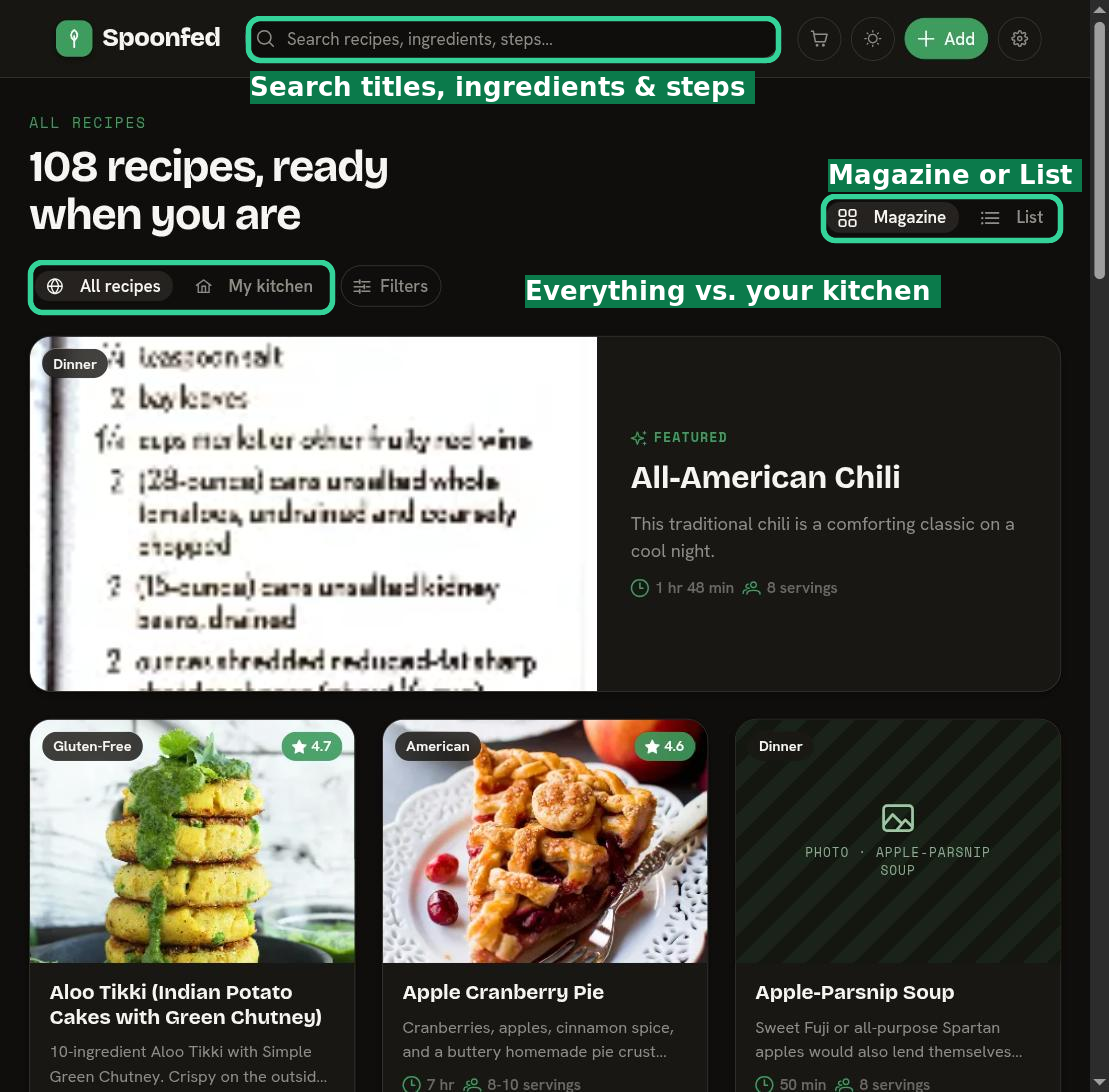
All recipes vs. My kitchen
At the top of the browser you can switch the scope:
- All recipes — the broader catalog you can see.
- My kitchen — just the recipes in your own household's kitchen.
Switching scope changes what the list, search, and filters draw from.
Magazine and List views
Two ways to look at the same recipes:
- Magazine — a visual grid that leads with photos. Good for browsing and rediscovery.
- List — a dense, text-first list. Good for scanning a lot of recipes quickly.
Search and filters
- Search matches across recipe titles, ingredients, and steps — so you can find "that soup with the lentils" even if you don't remember its name.
- Filters narrow the results by the facets that matter (cuisine, category, and more).
Tags
Any recipe can carry tags — your own labels like "weeknight", "gluten-free", or "mom's". Open a recipe and use the Add tag box to add one; click the ✕ on a tag to remove it.

Tags are a lightweight way to slice your library the way you think about food, and they make recipes easier to turn up in search.
The three recipe views
Open any recipe and you can choose how much detail to show. There are three density views:
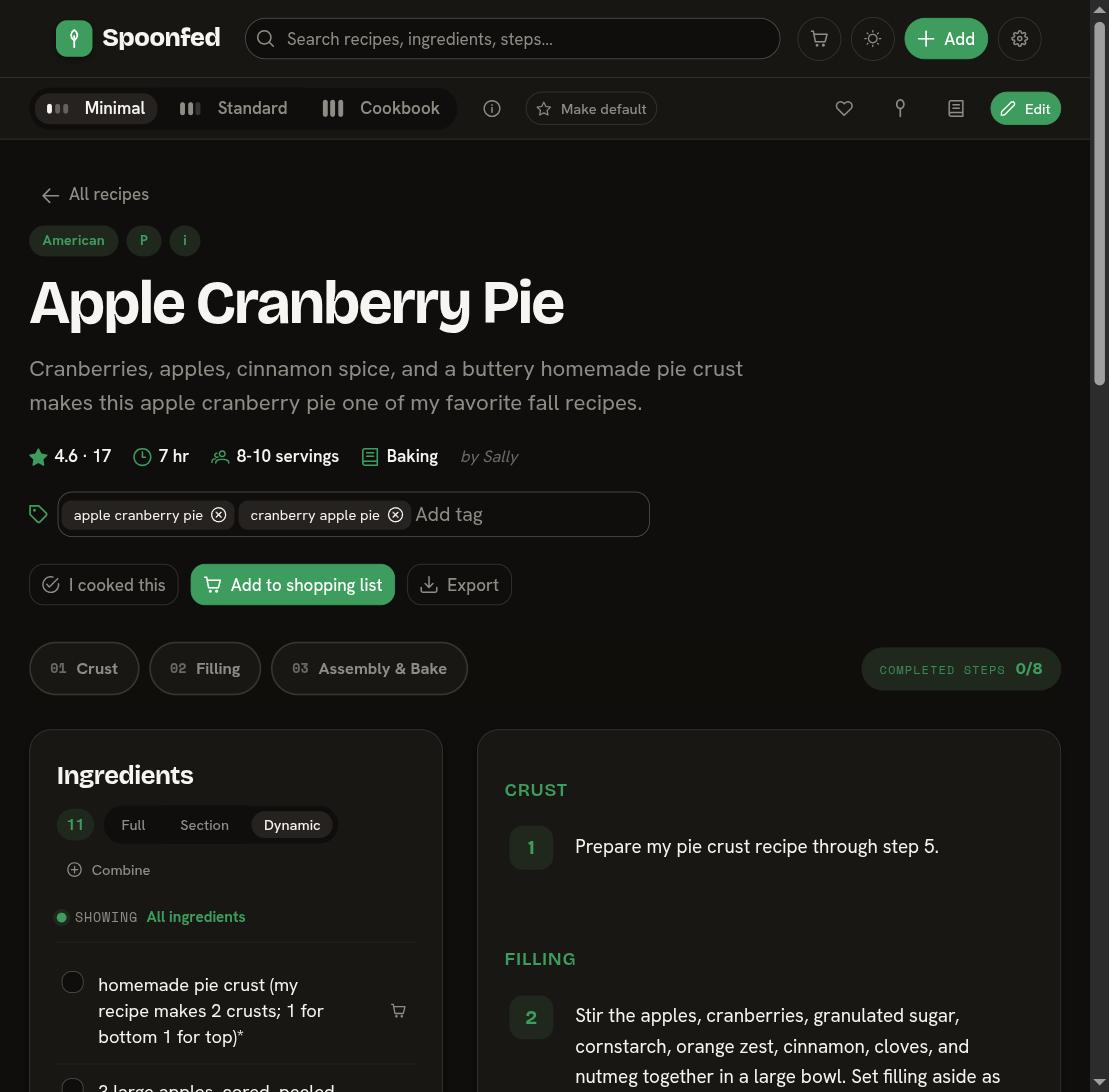
- Minimal — the essentials only: a clean, stripped-back look at ingredients and steps.
- Standard — the balanced, everyday view.
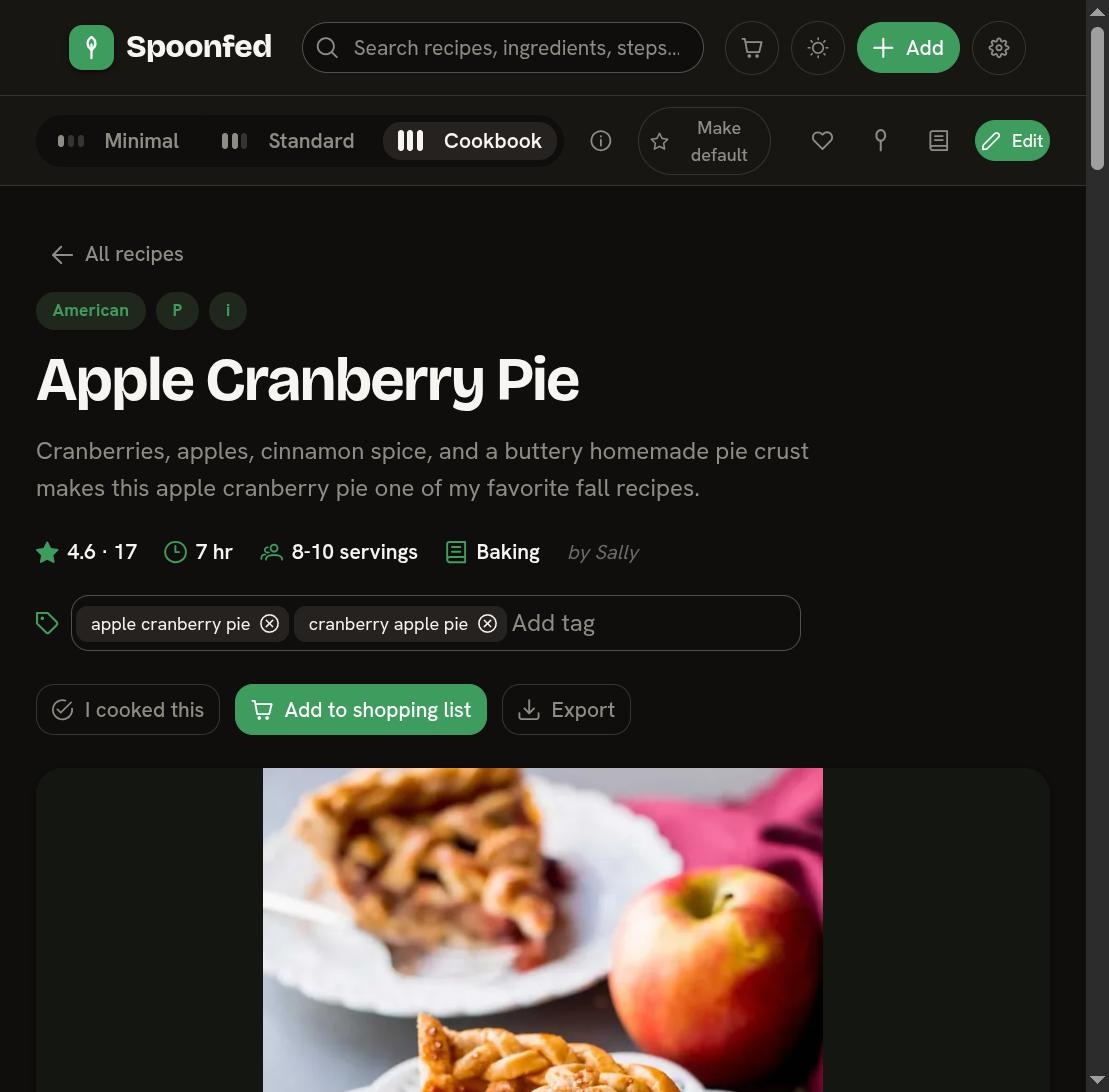
- Cookbook — a richer, more editorial layout, closer to a printed cookbook page.
Switch between them with the toggle at the top of any recipe:
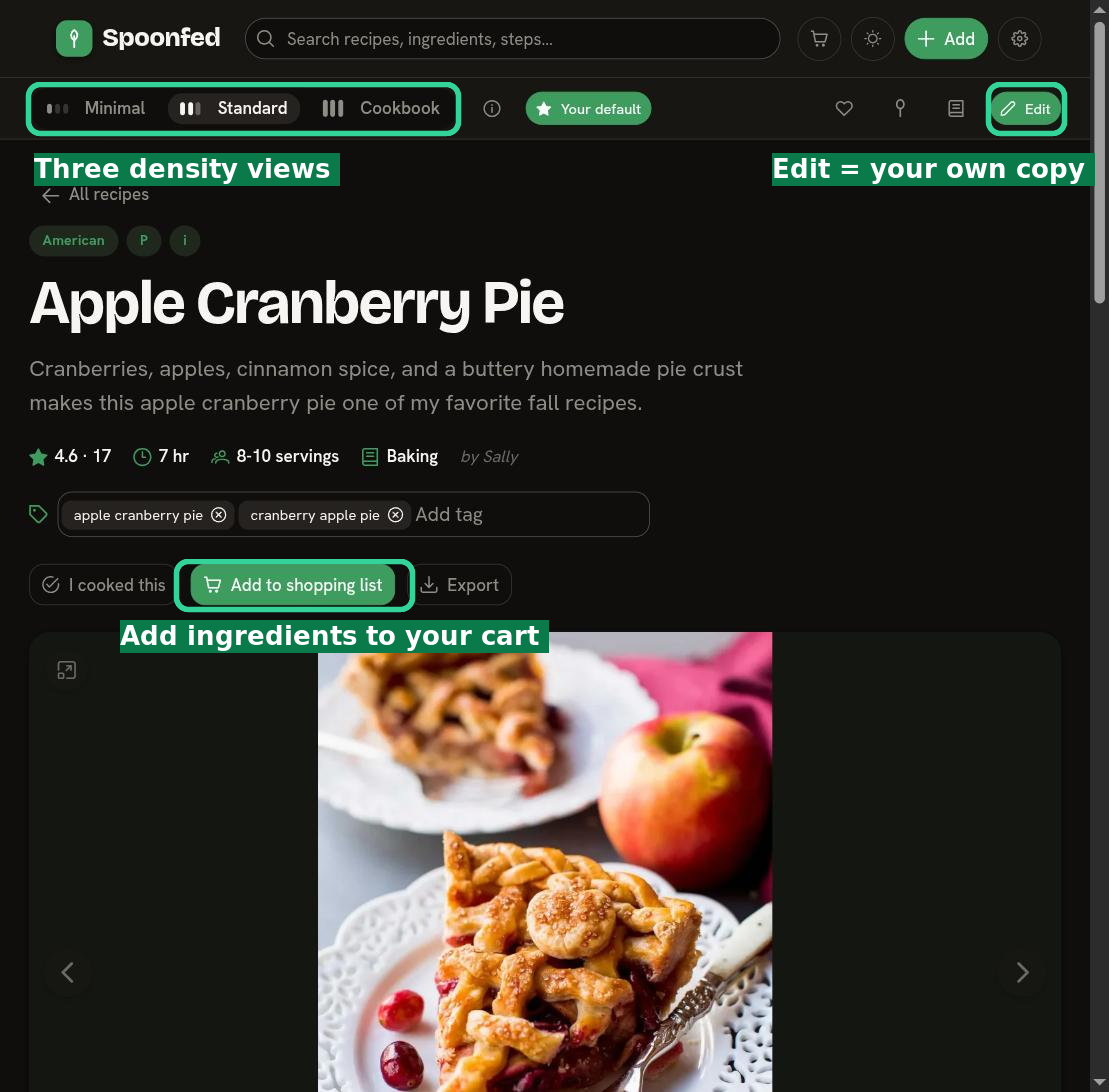
The same recipe in Minimal (left, essentials only) and Cookbook (right, editorial) views:
Pick whichever suits what you're doing — a quick glance while shopping, or a relaxed read while cooking. From a recipe you can also annotate it, add ingredients to your cart, or edit it into your own copy.