Appearance
Importing recipes
Spoonfed gives you two families of import: assisted import (one recipe at a time, with a review step) and structured / bulk import (a file or package, brought in as a batch). Start from the Add menu.
Assisted import
Assisted import turns something unstructured into a recipe you review in the editor before it's saved — nothing is saved until you say so.
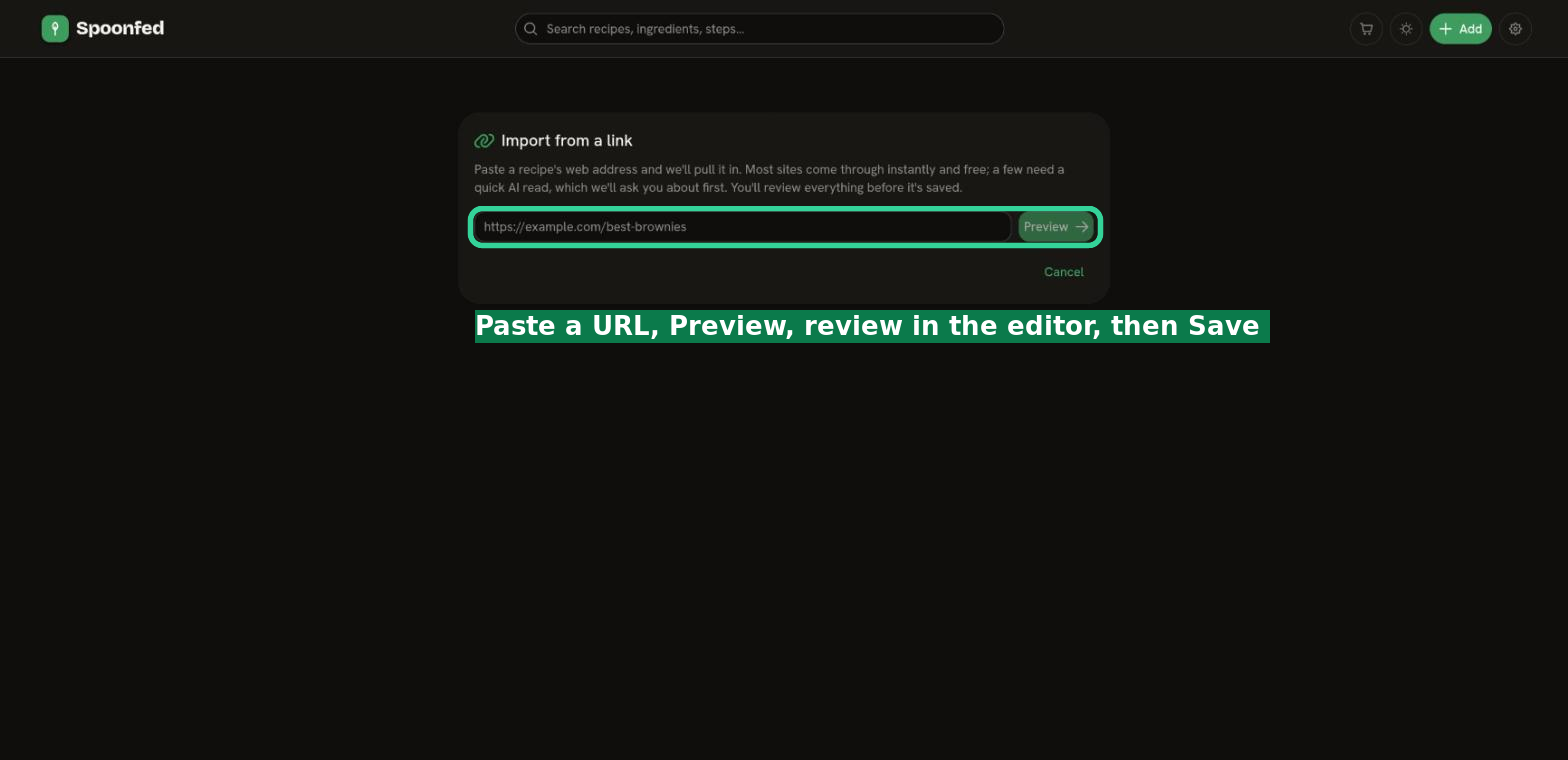
- From a link — paste a recipe URL. Spoonfed fetches the page and pulls out the recipe. Many sites publish structured data we can read for free; when a page doesn't, an AI pass reads the article text instead (you'll be asked before that runs). There's also a quick short link if you want to hand a URL straight in.
- From a photo — snap or upload one or more photos: a cookbook page, a handwritten card, a screenshot. Multiple photos of the same recipe are read together as one recipe.
- From pasted text — paste recipe text from anywhere and let Spoonfed structure it.
Each of these lands you in the recipe editor with a draft to review, tidy up, and save.
TIP
Assisted import is a premium feature. If your household isn't on a plan that includes it, you'll be prompted to upgrade.
Structured / bulk import
When you already have recipes in a portable format, bring them in as a batch:
- JSON-LD — import a schema.org/Recipe JSON-LD file, or paste JSON-LD directly. This is the common interchange format used across many recipe tools.
- Package (zip) — import a package: a zip containing JSON-LD plus the images it references. This is what a Spoonfed package export produces, so it's the way to restore a backup or move a whole collection in.
Bulk imports run as a background job — you can watch its progress — and de-duplicate as they go, so re-importing the same source doesn't create duplicates.
Which should I use?
- One recipe you found online or in a book → assisted import.
- A file or backup of many recipes → structured / bulk import.